Gravity Forms Integration
Use the built-in Gravity Forms integration to push form submissions from logged-in members directly to Re:Members. The integration is packaged with AMS Connect and loads automatically when all of the following are true:
- Gravity Forms 2.5 or newer is active.
- AMS Connect is connected to Re:Members (Impexium).
- The current user is authenticated and has logged in via Re:Members SSO.
If any of the dependencies are missing the integration stays dormant.
Quick Start
- Create a Gravity Form with the fields you want to have in the users' profile edit page
- Add a feed at Settings → AMS Connect - Re:Members
- Map form fields to Re:Members fields
- Use merge tags to pre-populate form fields with current Re:Members data (e.g.,
{amsc:profile:firstName}) - Save and test with a logged-in user
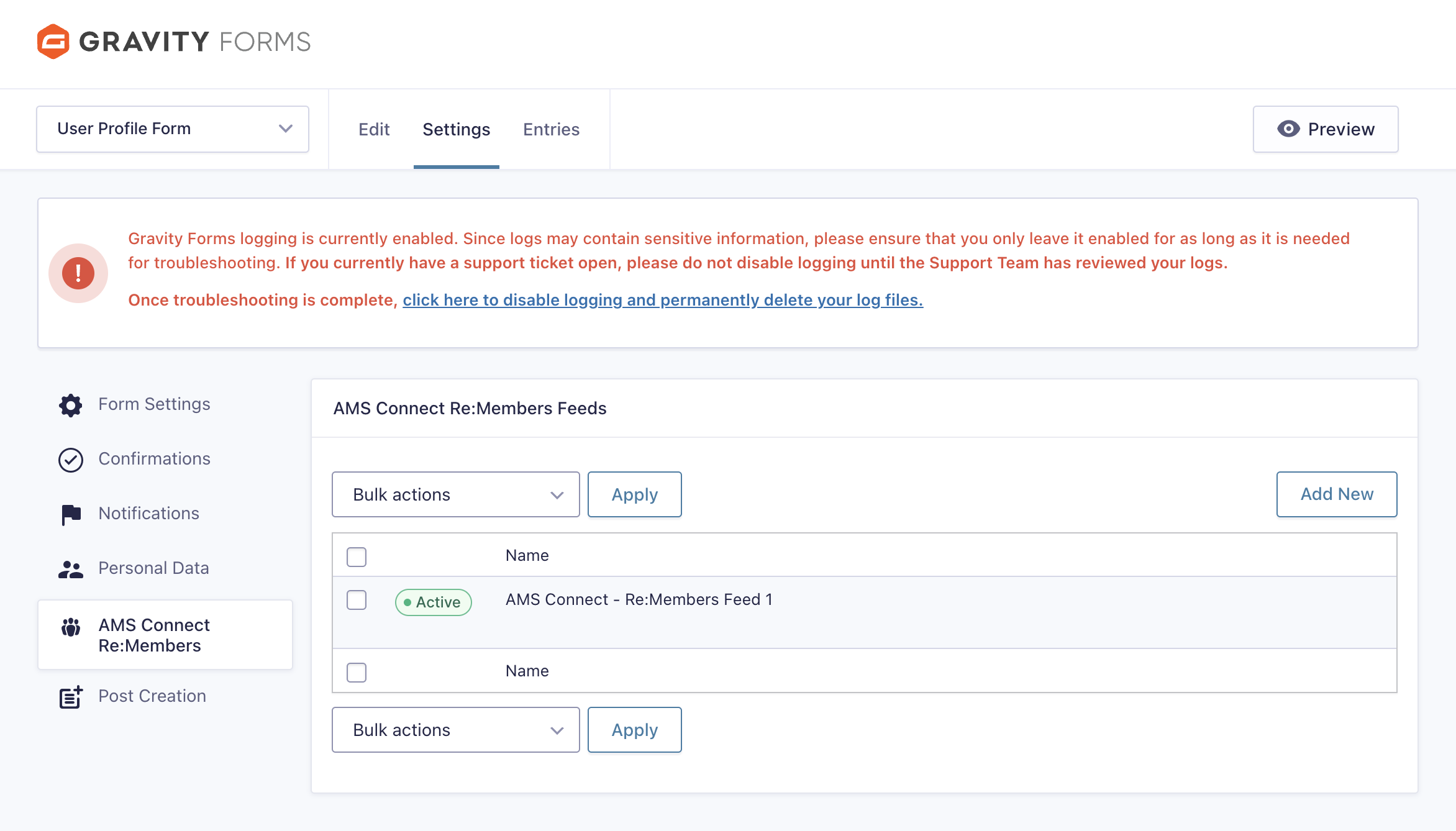 Screenshot: Creating a new Re:Members feed in Gravity Forms
Creating a Feed
- Open the Gravity Form you want to connect.
- Navigate to Settings → AMS Connect - Re:Members.
- Click Add New to create a feed and give it a descriptive name.
- Configure the Re:Members Fields Mapping table:
- Left column (Form Field): Select your Gravity Forms field
- Right column (Re:Members Field): Select the Re:Members field or enter a custom field merge tag
- Save the feed.
Primary Affiliation Relationship Settings
Current feed settings include:
- Feed Name
- Re:Members Fields Mapping
- Cache Management for Re:Members custom field definitions
Primary Affiliation Relationship Behavior
When the selected primary affiliation changes, AMS Connect updates both:
primaryOrganization.idon the individual profile.- A primary relationship entry pointing to the organization record number.
Relationship labels are currently controlled by filters instead of feed-level UI settings:
amsc_gf_remembers_primary_affiliation_relationship_name(defaultAffiliated With)amsc_gf_remembers_primary_affiliation_reciprocal_name(defaultHas Affiliated Member)
Multiple feeds can be attached to the same form if you need different mappings based on conditions.
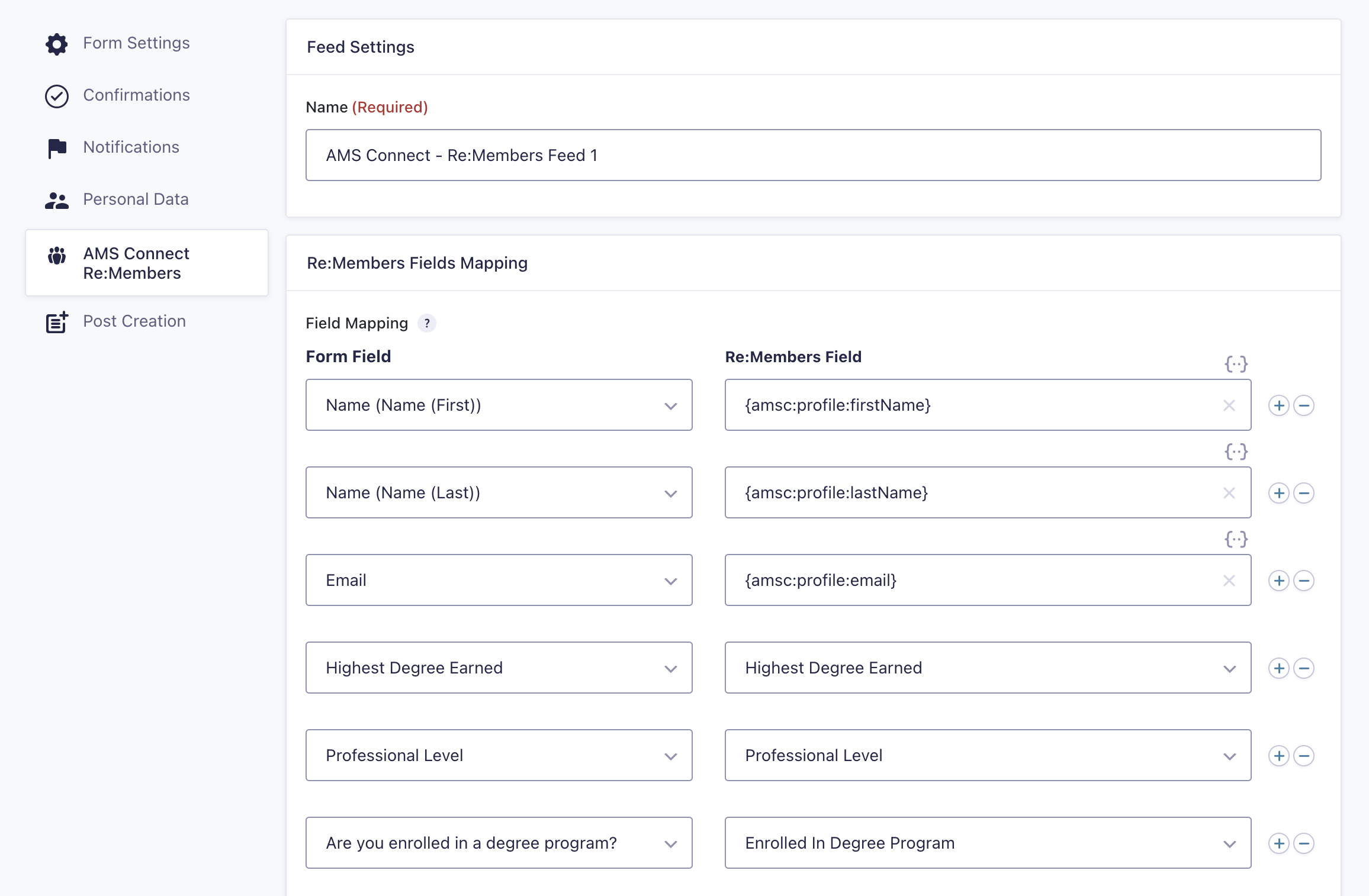 Screenshot: Mapping form fields to Re:Members fields
How It Works
Pre-Population with Merge Tags
When a logged-in user opens the profile form, fields are populated in real-time with their current Re:Members data using merge tags. For example:
- A text field with default value
{amsc:profile:firstName}displays the user's first name from Re:Members - A checkbox field mapped to a custom field automatically shows pre-selected values based on the user's profile
- Hidden fields can store IDs needed for updating existing data (addresses, phones, emails)
This allows users to see and edit their existing information rather than starting from blank fields.
Form Submission Flow
After editing their profile and submitting the form:
- The feed runs only for authenticated users - Anonymous submissions are ignored
- Mapped values are sent to Re:Members using the stored AMS credentials
- The user's profile is updated in Re:Members with the new values
Supported Field Types
The integration supports various Re:Members field types with different handling for each:
Primary Affiliation (Organization)
Use the Affiliation Picker custom field to let members choose an existing organization or request a new one.
How it works:
- Add an Affiliation Picker field to your form.
- In feed mapping, map that field to
primaryOrganization.id. - Optionally enable Allow Add New Affiliation in field settings.
- On submit:
- Existing selection sends organization ID directly.
- Add-new selection creates the organization first, then uses the new ID for profile update.
Pre-population behavior:
- For logged-in members with an AMS ID, the field automatically preloads Re:Members
primaryOrganization. - The UI displays organization name and retains canonical organization ID for submission.
The field stores both a human label and canonical ID in the entry. Notifications and exports can display either friendly text or ID depending on merge tag/output context.
Profile Fields
Standard Re:Members profile fields can be updated directly:
| Field Name | Description | Example |
|---|---|---|
firstName | First name | John |
lastName | Last name | Doe |
salutation | Title/prefix | Dr. |
suffix | Name suffix | Jr., III |
jobTitle | Job title | Senior Engineer |
email | Primary email | See Email Updates |
Custom Fields
Re:Members custom fields support the following input types:
| Re:Members Type | Compatible GF Fields | Behavior |
|---|---|---|
| CheckBoxList | Checkboxes, Multi Select | Multiple selections sent as pipe-separated values (Value1|Value2|Value3) |
| CheckBox (boolean) | Checkbox with single option | Sends "True" when checked, "False" when unchecked |
| DropDownList | Dropdown, Radio Buttons | Single selection sent as-is |
| RadioButton | Radio Buttons | Single selection sent as-is |
| TextBox | Text, Textarea, Email, URL | Text value sent as-is |
| DatePicker | Date | Date value in Re:Members format (untested) |
| FileUpload | File Upload | Not currently supported |
Complex Fields
Addresses
Address fields are sent to a dedicated Re:Members endpoint. You can map individual address components:
addresses:line1- Street addressaddresses:line2- Apartment, suite, etc.addresses:city- Cityaddresses:state- State/provinceaddresses:zipcode- ZIP/postal codeaddresses:country- Country
To UPDATE an existing address (not create a new one), you must include the address ID. See Updating Existing Data.
Phones
Phone fields have specific requirements:
phones:number- Phone number (required)phones:typeName- Type like "Mobile", "Home", "Work" (required)phones:extension- Extension (optional)
To UPDATE an existing phone (not create a new one), you must include the phone ID. See Updating Existing Data.
Emails
Email updates require special handling due to Re:Members API requirements. See Updating Emails below.
Custom Fields Auto-Population
The integration automatically populates Gravity Forms dropdown and checkbox fields with values from Re:Members custom field definitions.
How It Works
When you map a form field to a Re:Members custom field in your feed (e.g., {amsc:profile:customFields:highest_degree_earned}), the system automatically:
- Fetches available values from Re:Members
- Populates the dropdown/checkbox choices
- Pre-selects values based on user's current Re:Members profile data
- Validates submissions against the available values
Benefits
- No manual choice entry: Values sync automatically from Re:Members
- Always up-to-date: When Re:Members field values change, clear the cache to refresh
- Type-safe: Only compatible field types are populated
- Performance optimized: Values are cached for 24 hours
- Pre-population: User's current values are automatically selected
Example: CheckBoxList Field
Scenario: You have a Re:Members custom field called "additional_academic_positions" of type CheckBoxList with values like "Faculty", "Researcher", "Administrator".
Setup:
- Create a Checkbox field in your Gravity Form (any label)
- In the feed mapping, map it to:
{amsc:profile:customFields:additional_academic_positions} - Save the feed
Result:
- The checkbox field automatically displays all available positions from Re:Members
- If the user already has positions selected in Re:Members, those checkboxes are pre-checked
- When submitted, all checked values are sent as
"Faculty|Researcher"(pipe-separated string)
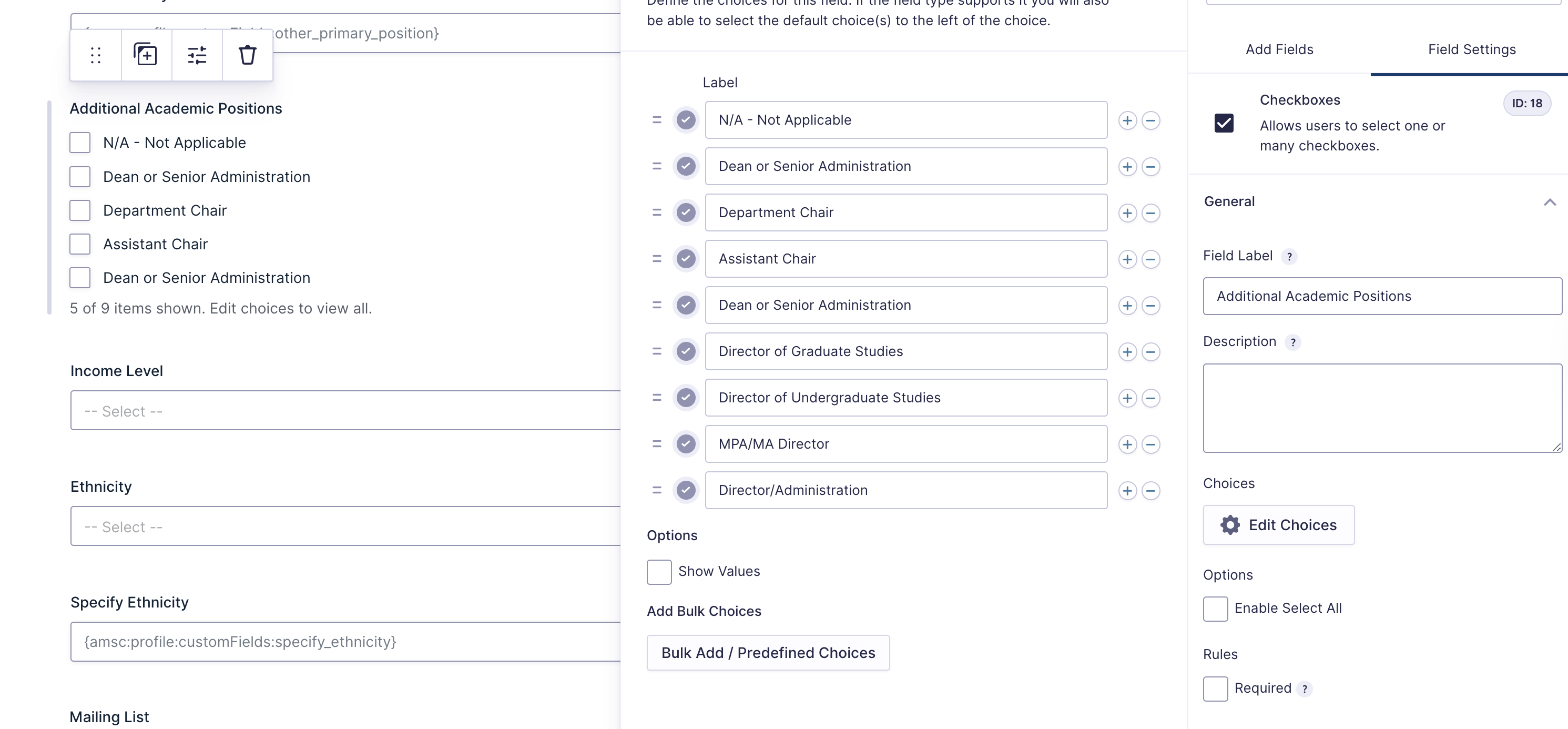 Screenshot: CheckBoxList field with pre-populated values
Example: Boolean CheckBox Field
Scenario: You have a Re:Members custom field called "newsletter_opt_in" of type CheckBox (boolean).
Setup:
- Create a Checkbox field in your Gravity Form with a single option having
trueas value (e.g., "Yes, subscribe me" =>true) - Map it to:
{amsc:profile:customFields:newsletter_opt_in}
Result:
- If user's current value is "True", the checkbox is pre-checked
- When checked, sends
"True"to Re:Members - When unchecked, sends
"False"to Re:Members (not skipped!)
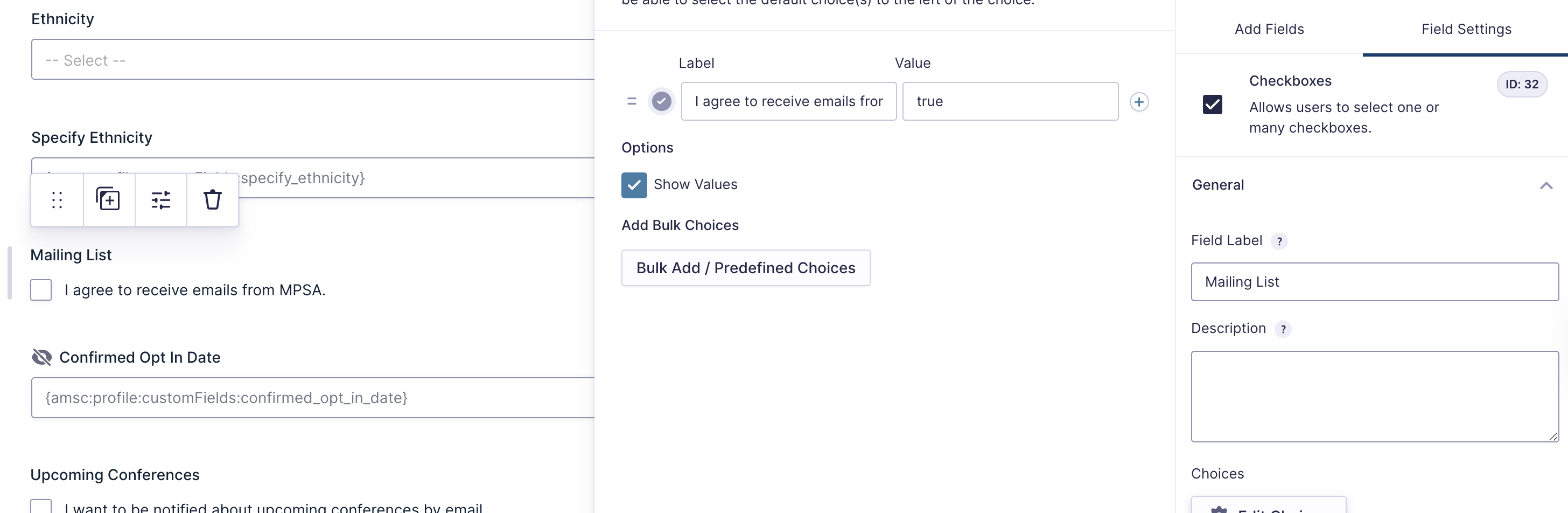 *Screenshot: CheckBox field with single option must have
 true value.
Cache Management
Custom field definitions are cached for 24 hours. If you update the available options in Re:Members or create new fields, you can manually clear the cache to instantly fetch changes.
To refresh:
- Navigate to Form Settings → AMS Connect - Re:Members for any feed
- Scroll to the Cache Management section
- Click Clear Custom Fields Cache
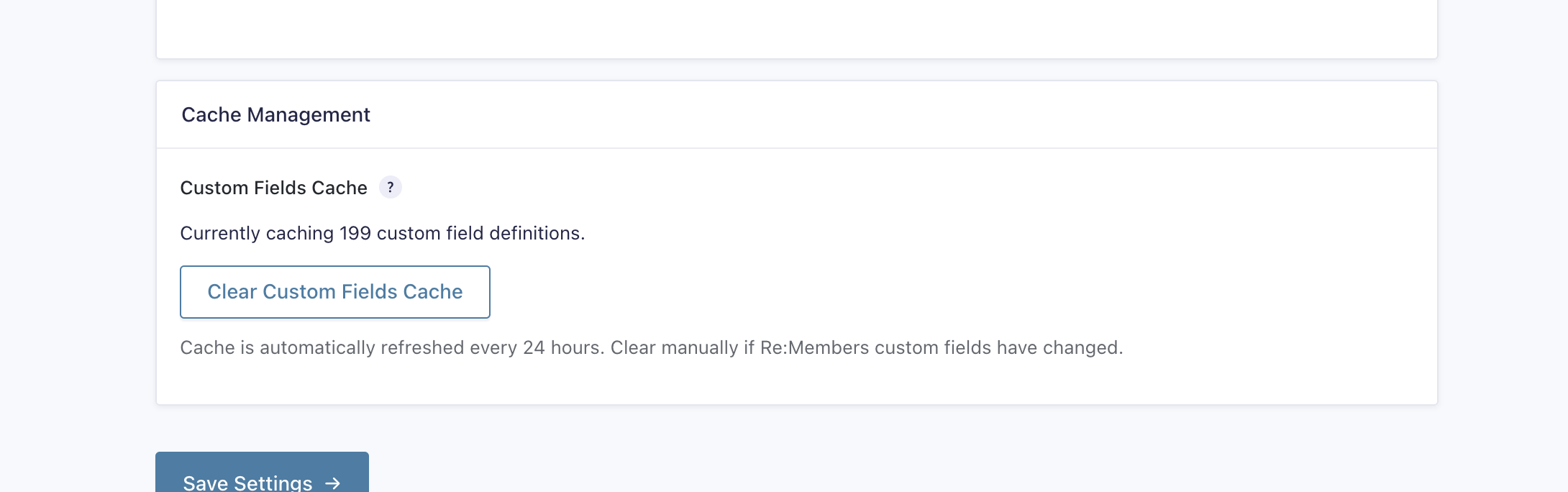 Screenshot: Cache management section in feed settings
Alternatively, use WP-CLI:
wp transient delete amsc_custom_fields_definitions
Merge Tags
Merge tags allow you to pull Re:Members profile data into your forms for display or pre-population.
Format
Merge tags follow this pattern:
{amsc:profile:field_path}
Examples
Profile fields:
{amsc:profile:firstName}
{amsc:profile:lastName}
{amsc:profile:email}
Nested fields (addresses, phones, emails):
{amsc:profile:addresses:line1}
{amsc:profile:addresses:city}
{amsc:profile:phones:number}
{amsc:profile:emails:address}
Custom fields:
{amsc:profile:customFields:highest_degree_earned}
{amsc:profile:customFields:newsletter_opt_in}
Usage
In form fields (pre-population): Set a field's "Default Value" to a merge tag to pre-fill it:
- Text field →
{amsc:profile:firstName} - Email field →
{amsc:profile:email} - Hidden field →
{amsc:profile:addresses:id}(for updates)
In notifications:
Subject: Profile update from {amsc:profile:firstName} {amsc:profile:lastName}
Body: Phone: {amsc:profile:phones:number}
In confirmations: Display profile data in confirmation messages after form submission.
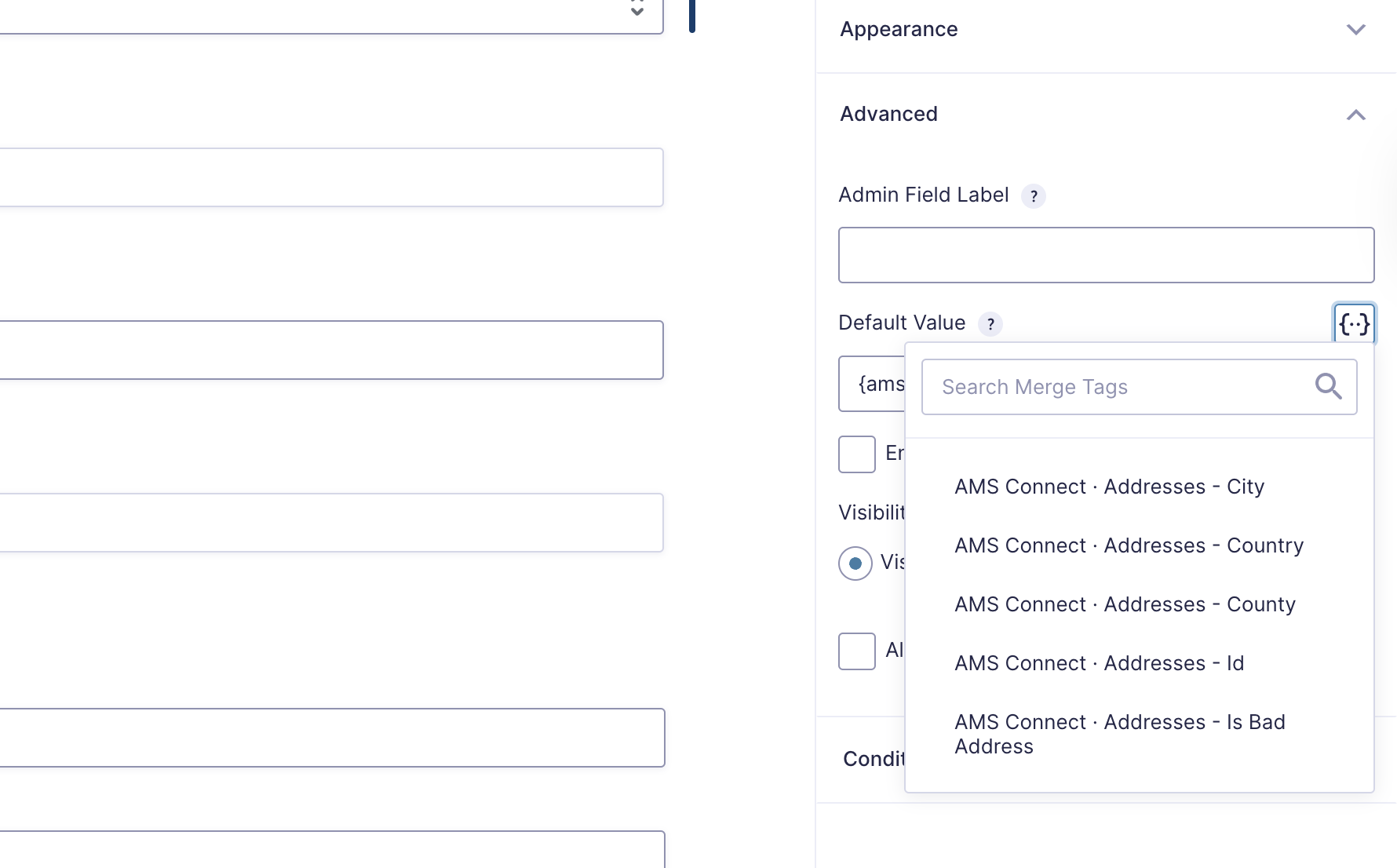 Screenshot: Selecting a merge tag from the dropdown
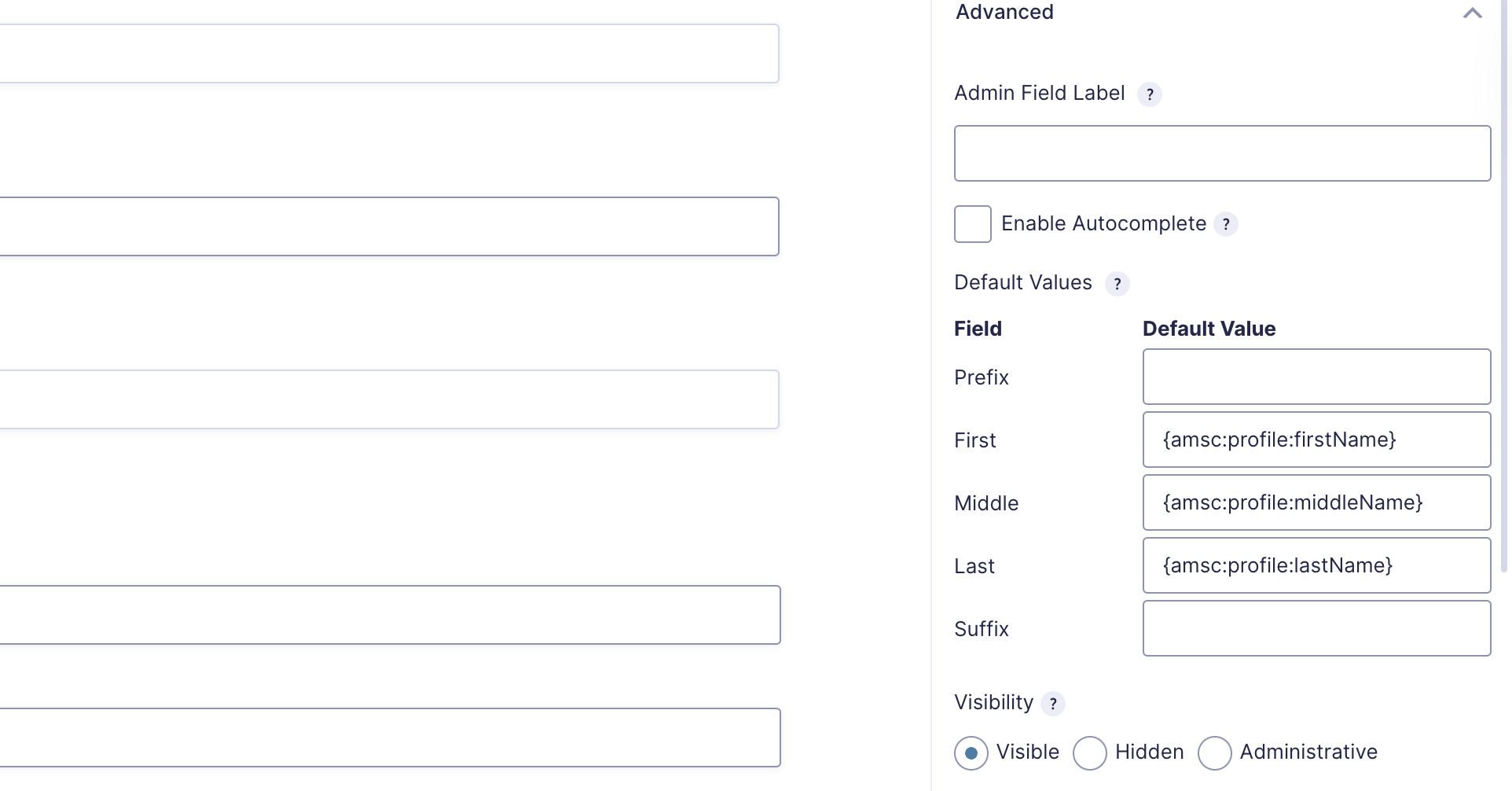 *Screenshot: Typing merge tags to pre-fill form fields.
Important Limitation: Array Fields
Re:Members profiles contain arrays (addresses, phones, emails, relationships). Only the first array item (index 0) is accessible via merge tags.
What this means:
{amsc:profile:addresses:line1}→ First address only{amsc:profile:phones:number}→ First phone only{amsc:profile:emails:address}→ First email only
Impact:
- ✅ Forms can pre-populate with primary contact information
- ✅ Merge tags display primary address/phone/email
- ❌ Secondary/additional addresses, phones, emails are not accessible and cannot be edited.
Technical reason:
Merge tag paths like addresses.0.line1 are normalized to addresses.line1 for simplicity. Supporting multiple items would require complex UI for selecting array indices.
Updating Existing Data
When updating addresses, phones, or emails, you must provide the ID of the existing item. Without the ID, the Re:Members API will create a new entry instead of updating the existing one.
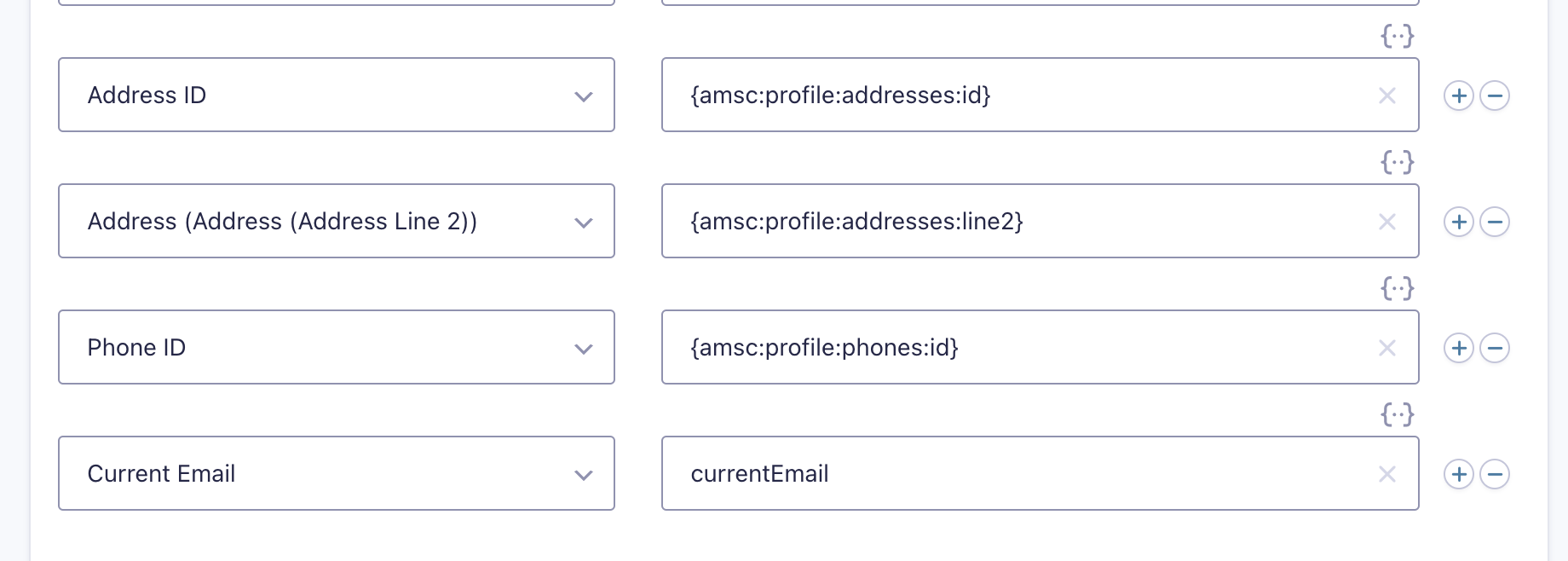 Screenshot: Form setup showing hidden ID fields for updating addresses, phones, and emails
Updating Addresses
To update an existing address (not create a new one):
- Add a hidden field to your form
- Pre-populate it with the merge tag:
{amsc:profile:addresses:id} - Map the hidden field in your feed to:
{amsc:profile:addresses:id}or select Address ID from the dropdown list. - Map other address fields normally (line1, city, state, etc.)
Example:
Hidden field "Address ID" → Pre-populate: {amsc:profile:addresses:id}

Feed mapping:
- Hidden field "Address ID" → {amsc:profile:addresses:id}
- Text field "Street" → {amsc:profile:addresses:line1}
- Text field "City" → {amsc:profile:addresses:city}
- Text field "State" → {amsc:profile:addresses:state}
Updating Phones
To update an existing phone (not create a new one):
- Add a hidden field for the phone ID
- Pre-populate it with:
{amsc:profile:phones:id} - Map the hidden field to:
{amsc:profile:phones:id}or select Phone ID from the dropdown list. - Map the phone number field to:
{amsc:profile:phones:number}
Example:
Hidden field "Phone ID" → Pre-populate: {amsc:profile:phones:id}

Feed mapping:
- Hidden field "Phone ID" → {amsc:profile:phones:id}
- Phone field "Number" → {amsc:profile:phones:number}
Updating Emails
Email updates are more complex due to Re:Members API requirements. You need to send to Re:Members both the current email and the new email.
Setup:
- Add a hidden field for current email
- Pre-populate it with:
{amsc:profile:email} - Map the hidden field in your feed to:
currentEmail - Map the new email input field to:
{amsc:profile:email}or select Email from the dropdown list.
The merge tag {amsc:profile:emails:address} is also supported.
Example:
Hidden field "Current Email" → Pre-populate: `{amsc:profile:email}`

Feed mapping:
- Hidden field "Current Email" → currentEmail
- Email field "New Email" → {amsc:profile:email}
Why this is needed:
The Re:Members API uses the current email address in the URL endpoint (/Individuals/{id}/Emails/{currentEmail}) and the new email in the request body.
Field Discovery
The Re:Members field dropdowns are populated from:
- A built-in list of common profile properties (name, email, address, etc.).
- All custom fields from Re:Members (automatically fetched and cached for 24 hours).
- Any fields discovered in the cached AMS payload saved in WordPress. If you do not see a field yet, run a manual "Refresh AMS Data" for a user so that the data is stored locally and the field becomes available in the dropdown. You can also type a new field name directly if needed.
Common Use Cases
Use Case 1: Profile Update Form
Allow members to update their basic profile information.
Form fields:
- First Name (text)
- Last Name (text)
- Job Title (text)
- Phone Number (phone)
Feed mapping:
First Name → {amsc:profile:firstName}
Last Name → {amsc:profile:lastName}
Job Title → {amsc:profile:jobTitle}
Phone Number → {amsc:profile:phones:number}
Use Case 2: Address Update Form
Allow members to update their address with proper ID handling.
Form fields:
- Address ID (hidden, pre-populate with
{amsc:profile:addresses:id}) - Street Address (text, pre-populate with
{amsc:profile:addresses:line1}) - City (text, pre-populate with
{amsc:profile:addresses:city}) - State (text, pre-populate with
{amsc:profile:addresses:state}) - ZIP Code (text, pre-populate with
{amsc:profile:addresses:zipcode})
Feed mapping:
Address ID → id
Street Address → {amsc:profile:addresses:line1}
City → {amsc:profile:addresses:city}
State → {amsc:profile:addresses:state}
ZIP Code → {amsc:profile:addresses:zipcode}
Use Case 3: Custom Fields with Checkboxes
Collect multiple selections for a CheckBoxList custom field.
Form fields:
- Additional Academic Positions (checkboxes)
Feed mapping:
Additional Academic Positions → {amsc:profile:customFields:additional_academic_positions}
The checkbox field will automatically populate with available values from Re:Members and pre-select the user's current selections.
Error Handling
If the feed encounters an error (for example, the WordPress user does not have an AMS ID or the API call fails) the submission is logged with the error message and nothing is changed in Re:Members.
How to troubleshoot:
- Check entry notes in Gravity Forms entry details
- Enable Gravity Forms logging add-on for deeper diagnostics
- Common errors:
- "No AMS identifier is stored for this user" → User not linked to Re:Members
- "AMS Connect is not initialised" → Plugin configuration issue
- "Re:Members is not the active AMS" → Wrong AMS connected
Best Practices
1. Use Hidden Fields for IDs
Always use hidden fields pre-populated with merge tags for IDs when updating addresses, phones, or emails.
2. Pre-populate Form Fields
Use merge tags to pre-populate form fields with current values so users can see and modify their existing data.
3. Test with Different User Roles
Test your forms with users who have different data in Re:Members to ensure proper handling of:
- Empty values
- Multiple selections in checkboxes
- Different address/phone formats
4. Clear Cache After Re:Members Changes
If you modify custom field definitions in Re:Members (add/remove options), clear the cache to update the form choices.
5. Use Descriptive Feed Names
When using multiple feeds, give them descriptive names like "Profile Update Feed" or "Address Update Feed" for easy identification.